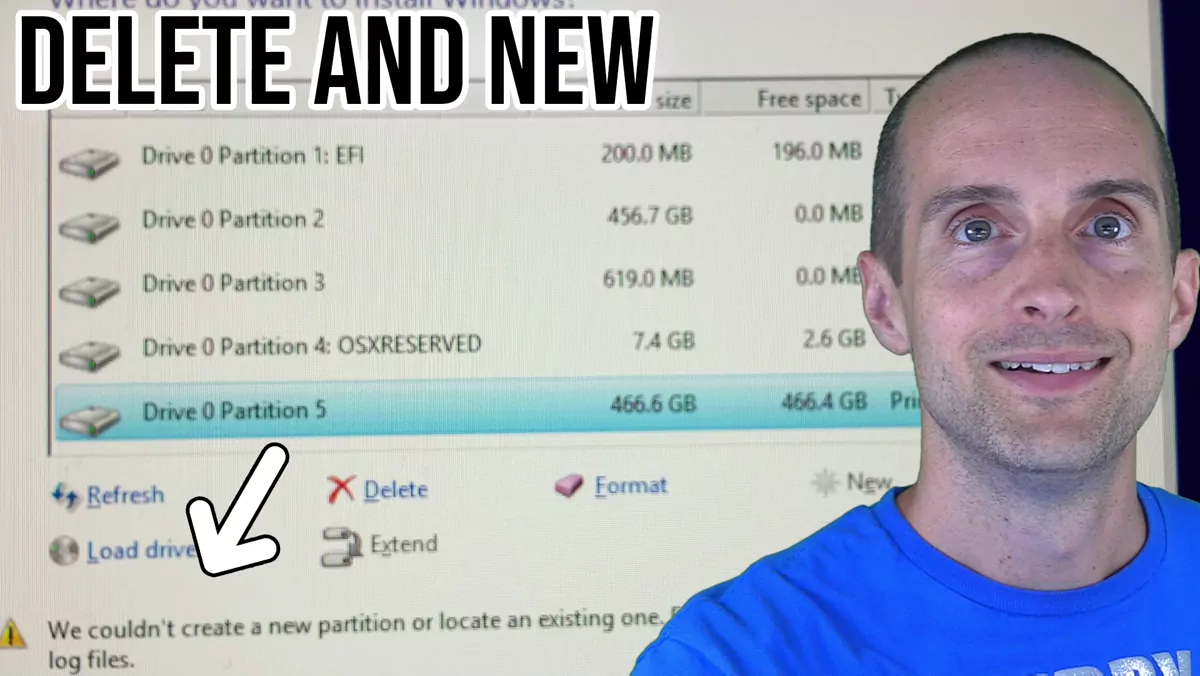
If you're getting an error that says "we couldn't create a new partition or locate an existing one," there's a really simple solution to this. All you need to do is delete all the drive partitions and then create a fresh one. This usually clears the error and lets the Windows install continue.
The fix: delete every partition and create a new one
When Windows setup throws this error, work in the same screen where it lists your drives and partitions:
- Select each partition on the drive you're installing to and delete it, one at a time, until the whole drive shows as unallocated space.
- Click New to make a new drive out of that unallocated space.
- Continue the installation onto that fresh partition.
Deleting the partitions this way will often wipe all the drivers on the drive as well, so plan for that before you start.
Get your drivers back after a clean install
Because wiping the partitions can take your drivers with them, you may not be able to connect to the internet when you go to reinstall Windows. If that happens, you'll need to download the internet (network) drivers on another device or onto your USB boot drive first, so you can get online and access everything once Windows is installed.
After you're back on the internet, go to Windows Update and your graphics card drivers and download all of those again. I just had to do this yesterday myself. I deleted all my drives and all my partitions and started fresh.
When you actually need to delete the partitions
If you're installing Windows to a drive that won't work, you do need to delete all of these partitions. But if you're not installing Windows to that drive, you may be able to get away with just leaving them there.
For me, if you've landed here as a result of this error, you probably just need to delete all of it and add new. If you found this helpful and want more like it, you can watch my newest videos in my Life playlist.