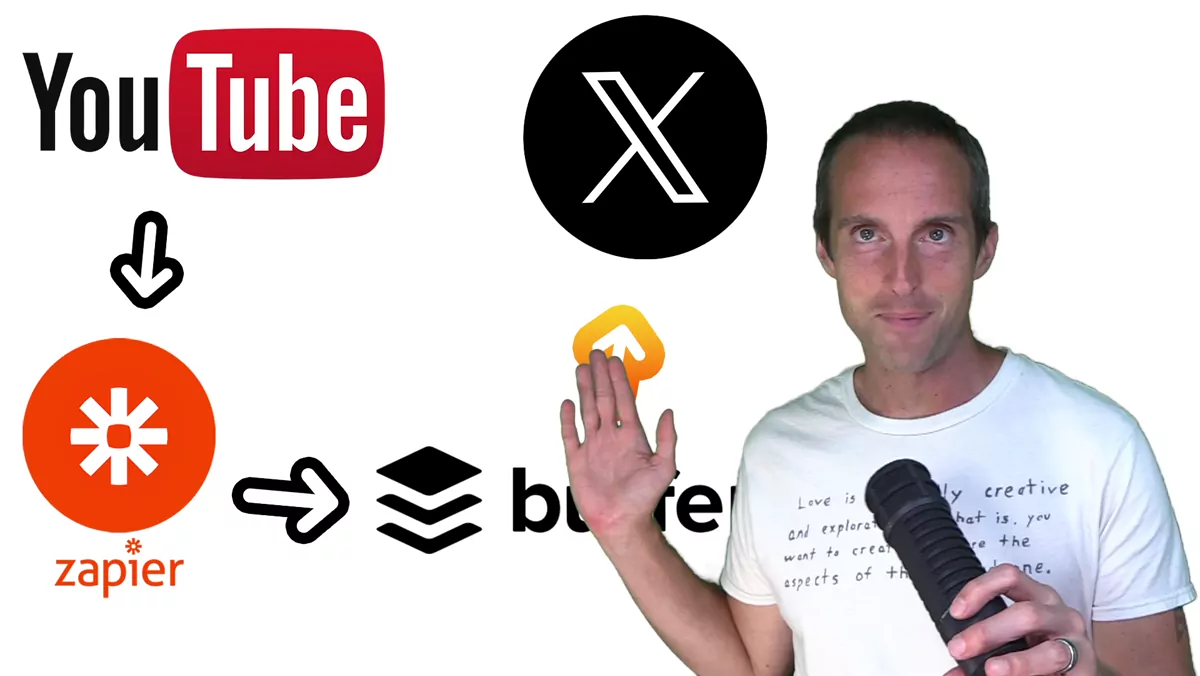
In this tutorial I want to show you how I automatically post my new YouTube videos directly to X. To be clear, it just puts an image post on X. But for me as a full-time YouTuber, I've been wasting a lot of time uploading my videos to X separately, and I wanted to stop doing that work twice. At the same time, X is worth posting to, because I've got 10,000 followers there. What I don't want to do when I'm publishing six videos a day is mess around with manually uploading every single one of those videos to X.
That said, here's the one honest downside: in my experience, you often will not get as much reach by uploading an image with a YouTube link as you will by uploading the video directly to X. But this approach saves so much time in the workflow. It literally saves you from having to upload a video twice, which for me is the whole point.
What you need to get started
To set this up you need to be signed up for two services: Zapier at zapier.com and Buffer at buffer.com. As far as I can tell, you can do both of these on a free plan, at least initially. What I personally need to do is upgrade, because I'm publishing six videos a day. That works out to about 180 tasks per month, which takes me over to the professional plan, which for me is $240 a year. For me that's worth it to save the hours of time and the distraction. But you can set all of this up totally for free and make sure it works before you pay for anything.
So on Buffer, you sign up for a Buffer account and connect it to your X account. Then you do the same kind of setup on Zapier.
Building the Zap: the YouTube trigger
To get this to work, on Zapier you click on Create a Zap. Then you go down to the Trigger and search for YouTube. Click the YouTube app, then over on the right choose an event, and pick New Video. After that, select an account: you sign in with your YouTube account and give it all the permissions it needs to do this. This is your trigger, which means nothing happens until a new video appears. You can name your Zap up at the top as well, something like "New video in channel."
Then you go down and put in your channel ID. If you don't know your channel ID, all you have to do is go over to your YouTube channel and click on your channel. It will open up your channel by the channel URL at the top, so you grab the part at the very end where it says youtube.com/channel, copy that, and paste it into the channel text field on Zapier. Then click Continue.
Next it will test the trigger. It pulls videos from your account and shows you which ones are in there. In my case I could see "Song 353 Piano and Synth Improv," and the last three videos showing up are the ones on my channel. You can confirm the same thing on yours.
Why you need Buffer instead of a direct X app
Here's the next thing, and it's important. Last I checked, Zapier did not have an X app or an X post action available directly. When I search for "X" or "X post," nothing comes up. If I search for Twitter, the actions aren't there either, because they changed the way they use the API. So definitely check whether they've added a direct X app by the time you're reading this, because if they have one, you could skip using Buffer entirely. But right now, it's not there.
So what you have to do is use Buffer, because Buffer has it set up with an X API. All you have to do on Buffer is connect your X account to make this work.
Setting up the Buffer action
The next thing you do is add the Buffer app as your action. Choose an event, and click Add to Queue. Then you've got your Buffer app set, so click Continue. Now you pull your organization in from Buffer and put that value in, then set your channel, which is your premium profile on your channel there.
For the text, what I do is hit the plus button, take the title of my YouTube video, add a space, and then put the YouTube URL in there. What this does is simply post the title of the YouTube video plus the URL. The reason I do it this way is that if people are going to watch a video, I want the watch time on YouTube, because the watch time on YouTube matters. It doesn't matter that much on X.
Then I go to media. Now, if you wanted to use the video itself, you'd need to download the video from YouTube, so that's not really going to work here. The easiest way to do this is to just click image. You click on the image field, hit the plus sign, and go to thumbnails, then max res URL. There are some other options where you can filter for various details, but you want to use the thumbnails max res URL. That grabs the maximum resolution of your thumbnail and sticks it in there as the image.
For the method, what I do is click Share Now. If you want to stagger these or schedule them, you can, but I already schedule my posts on YouTube and I don't want to do the work twice, which is exactly what I've been doing on X. So I just immediately share it out on X as soon as the video goes live on YouTube, since it's already scheduled there.
Then I click Continue, and the next thing that comes up is a test. You can make sure it pops out correctly on your X profile the way you think it should, and you can always delete it afterward if you already posted it. I already ran the test on this earlier and confirmed it came out properly, so I'm not going to do it again. What it does is crank out the same title with the YouTube link and just an image. It does not crank out a video.
Turning it on and a few warnings
Once you're done, you can skip the test if you want, and then all you need to do to turn this on is click Publish. I already have this set up in another Zap, so I'm not going to publish duplicate Zaps. But once you have your Zap done, you click Publish, then click Rename so you've got a clear name for it. I've done a whole bunch of other Zaps in the past, and this is the only one I'm running right now.
If you have a Discord or a Telegram channel, you can use this exact same workflow to publish a video to your Discord and to your Telegram as well. But I don't use Discord or Telegram. In my opinion there are too many bots, and you're subject to centralized censorship, so I don't think that's worth it to me.
A couple of warnings from my own experience. The problem with this can be that if you turn the Zap on suddenly, for some reason it can dump a whole bunch of posts out all at once to your X account. So just keep an eye on your X account right when you first turn this on, especially for the first few days, to see how it behaves. The other thing is that if you unlist a bunch of videos or make a bunch of videos private and then put them all public again, even if they're old videos, this can trigger every single time you do that. So you don't want to accidentally publish a bunch of old videos at once this way. If you want help dialing in automations like this one and the rest of your posting workflow, you can schedule a one-on-one call with me and we'll work through it together.
I'm Jerry Banfield, a full-time YouTuber putting out six videos a day, which is exactly why I can't be bothered to upload them all manually. I make all kinds of videos: music videos, crypto videos, in-real-life videos, and plenty of videos for creators. If you're a YouTuber and you found this helpful, you might enjoy more of what's in my YouTube Coaching playlist, which is the kind of thing that helps if you're trying to save time and grow your channel.