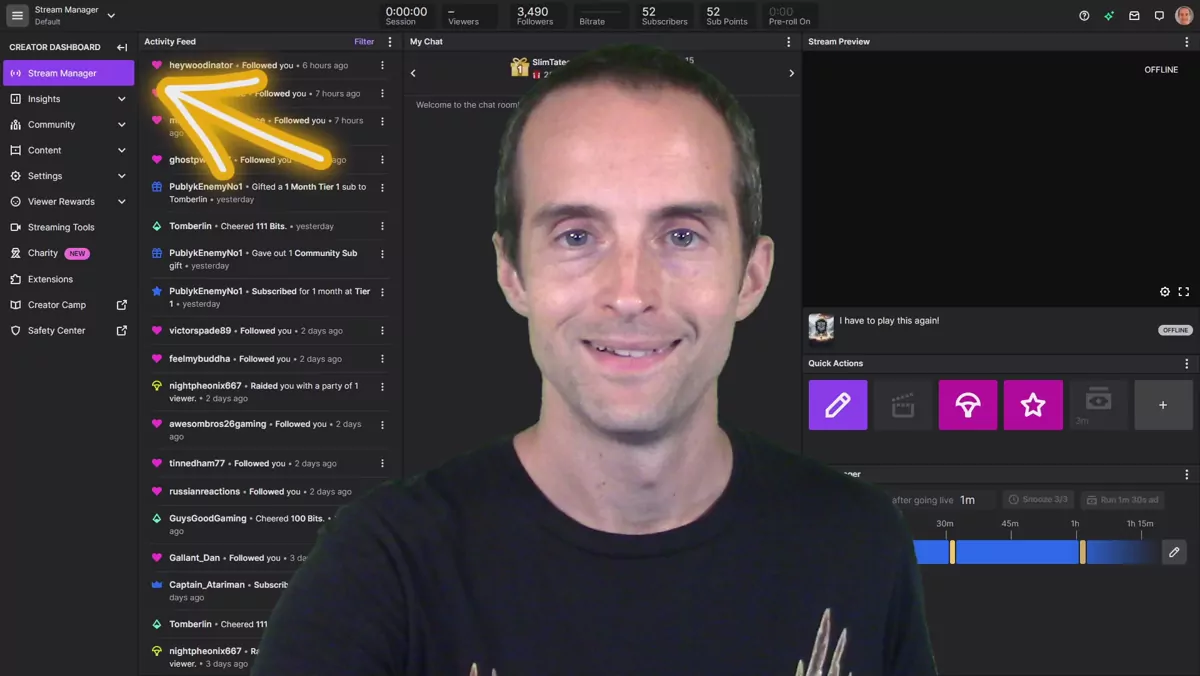
My friends, today I'm going to show you how I stream on Twitch. If you're new here, I am a full time streamer on Twitch. I upload videos of my stream to YouTube, and then I put the recordings of the just chatting parts on my podcast. So this is what I do. This is my whole life as a creator, and I'm going to show you inside of the Twitch interface and even show you adding a bot. This will be especially helpful if you're switching to Twitch from another platform, because I'm not going to go over all the very basics of streaming, like how to set your mic up and all of that. I have a studio tour video already where I go over all of that, called Jerry Banfield Studio Tour 2022.
I want to thank Michael Suppo, who was my inspiration for making this. If you're into watching crypto and learning about crypto, investing in crypto, Michael Suppo, aka Suppo Man, is going to be starting here on Twitch soon. I made this specifically to show him what I know about Twitch, and I'm looking forward to his crypto streams on Twitch. So now that we've given you the little intro, let's go ahead and do the tutorial.
The stream manager and creator dashboard
What you're looking at here is the main page on Twitch as a streamer, the one you want to get to. This is your stream manager, at dashboard.twitch.tv. If you're on the main Twitch page, you get to this by clicking on your creator dashboard. It's just dashboard.twitch.tv, and your stream manager will take you there.
I'm filming this live right now while I'm on Twitch, for the most authentic Twitch tutorial. If you're watching this on YouTube, I would love to talk with you on a call.
Turn off your viewer count
The most important thing I'm going to say right here is this. If you're streaming on Twitch, one of the most helpful things I can suggest is that Twitch allows you to click each of these fields up here, and I would suggest you click your viewer count off. It'll look like this for the entire live stream. I suggest this because you don't control how many people are watching. It's very easy and natural for an ego to develop around this. It's very easy for you to get excited or unexcited based on this. In my experience, you should not judge the success of your stream by this number, so turn it off. This is a big distraction.
Your live stream should be worth watching whether there's one, ten, a hundred, or a thousand people watching. It shouldn't matter. Your show should be equally as good. Your job as a streamer is to watch this, the chat, which is where the chat will come in. What really makes a live stream worth watching is the streamer responding to the chat. That's what's really special about this. So turn off the viewer count and completely focus on the chat right here. This has been one of the hardest things for me to learn as a creator, to stop focusing on the count and completely focus on the chat.
My chat and activity feed setup
Now I'll explain what each of these fields are. What's to my right here is the chat. On my setup, I actually have the stream manager pulled up right here, and then I click on pop out chat. If you click these three little blue dots, it'll pop the chat out. So I have the chat right here, and on this monitor I've got a long form chat, so that if this chat goes too fast, I essentially have more than twice as much of the chat that I can see right there. That way I can easily see the chat with everything else, and if the chat's going kind of slow or insufficient, or if it's going fast, I need that deeper monitor.
This next column is the activity feed. This is where you can see where people have followed, people have dropped gift subs, people have raided. This is the activity feed. So the main two things you'll usually use while you're live are the chat and the activity feed.
Editing your stream info before you go live
Before you go live, the one thing you really need to do is get into this quick actions tab and edit your stream info right here. This is what I used for my last live stream, and I'm going to help you see what's important to put on here. A lot of streamers on Twitch don't take their title very seriously. A lot of people on Twitch just put in all kinds of dumb, useless titles up here, but I'm going to encourage you to put in a title and think a lot about your first few words ideally, because I'm going to show you in a minute where the title pops up.
You've only really got a couple of ways to get people involved in your stream on Twitch. You've got your title, you've got the name of your stream, whoever you are, whether you're Michael Suppo, Jerry Banfield, whoever, you've got your name, and then you've got your category. Twitch has a relatively small amount of words you can use to communicate what your stream is about, so you want to pick a title that's going to get people interested. Like for crypto, I saw a guy yesterday who said something like "BTC tanking" for the title. It pops up. If people miss you being live, they can see what your stream was about there.
For the go live notification, if people have your notifications on their phone, this will come up along with your name, but the category you're playing won't. So I generally just put the same title and go live notification. Even if I'm playing something, I usually just use the same title and go live notification.
Language, reruns, and tags
For the stream language, you obviously want to put your stream language. Do not do reruns on Twitch. Reruns are live streams that are recordings. Anything that's not live, don't do that, so if you're not doing that, you won't need to check that box.
The last thing to talk about on this screen is tags. You can do a lot of good work with your stream on tags to help people figure out what your stream is about. I suggest you put a tag on there for your language. That's one of the most basic things to put on that people need to know, so if you're speaking English, put English. I also like to put my country, USA, and my state within the USA, Florida. Anything people are going to relate to your live stream on, you can put that in as a tag. For me, I put in stuff that I do a lot and talk about a lot on my stream, so I put sober, that way if anybody's looking for a sober streamer and they type in sober on Twitch, maybe my stream will come up. I put recovery, coaching, and positive, along with English, Florida, and USA.
Based on exactly what I'm doing in each stream, I'll edit or add two other tags. You can have up to 10 tags. For example, for crypto you can have very similar ones. I did a crypto stream yesterday and I added BTC and Bitcoin into my tags. For this one I added streaming and something else. For crypto streaming you'll put crypto in the category, then you can be more specific with the tags.
Getting your category right
The basic categories are whatever game you're playing, or you can put just chatting, you can put a podcast or a show, you could put crypto if you're talking crypto, and there are some other categories too. The category is the most important thing on here, because if you're playing Call of Duty Warzone, for example, but your game is set to something else, then you're not going to be showing in the right place on Twitch. So your category, if you're streaming crypto every day, make sure that's crypto and you can just leave and forget it.
Make sure you can actually change all of this mid stream too. For example, on Twitch you could do crypto the first half of the stream, and then you could switch to gaming or chatting, just make sure that category is correct. You can change all of this mid stream, and I often do. I find that Twitch notifications work very well and are very consistent.
The raid feature and your camera angle
The next thing on this dashboard I want to cover is your raid feature. You'll see where the arrow is pointing to the raid button. Now, one thing I haven't mentioned yet that you might notice is that I have a camera angle that really stands out. If you're doing a just chatting stream and your face is going to be front and center anyway, then that's not such a big deal. However, if you are doing a gaming stream, especially where you're playing the game, one way you could do it is like most people do, with the camera right here, and a lot of people have their camera even smaller than this.
However, on Twitch your thumbnail is automatically generated, so one of the best ways you can get people to notice your stream is by making your camera bigger. If you're doing something like streaming crypto, you should have your face probably as big as possible, and you can either have it right in the center of the screen or you can go over on the side. On mine, I have a camera right here, there's a camera back there that's capturing this, I have a camera right here for this big view, and then for this view I have an iPhone 8 connected up with the iOS Camera app, and then I have a Stream Deck down here. I've been raided recently by a professional soccer player who's actually listed right here. His name's Aiden O'Brien, and he is a
Your camera angle is one of the easiest ways to stand out on Twitch
He's a professional soccer player now, and he raided my stream one day while I was playing Call of Duty Warzone. I mean, I was pretty far down the list of Warzone streamers, I imagine, but he told me he noticed me because of this: he had scrolled through a whole bunch of other people looking for somebody to raid, and my camera angle stood out. So on Twitch it's extra important. Your camera angle is one of the best ways to stand out. That's why all these people doing hot tub streams with barely any clothing have a chance to get so many viewers: their camera stands out. The majority of streamers on Twitch do not put much thought or effort into their camera, and if you want to get more views on Twitch, one of the easiest things you can do is have a bigger camera angle. So, for example, if you're looking at crypto charts, you could have your camera off to one side or off to the other, and then you can switch over and talk right in the middle of it.
The raid feature is what makes Twitch magical
I mentioned raids a minute ago. One of the biggest and best features on Twitch compared to other platforms is the feature called a raid. A raid basically means that when you're about to go offline, you send your viewers over to another live stream. This is a great way to give back, especially if there's some streamer you follow whose stream you really love and they're live right when you're about to go offline. You click on the raid feature and it shows you your options. On the interface it's this button when you're streaming, and after you stream you use this button, and these are all in the quick actions tab. You can edit that interface to look how you want, so before you stream, you make sure to set it up, and if you need to change anything while you're streaming, you can. Then, when you're about to go offline, you click the raid feature.
This is a very powerful feature on Twitch that on other platforms either doesn't work or doesn't even exist. If you've got a streamer you love and follow and they're online, you can see who's online: when you click on raid, it shows you the channels you're following and lists them in order of viewers. You can also just go to your Twitch page. For example, if I want to raid somebody that's got less than eight viewers, I can look through everybody I'm following and type them specifically into the live channel. What's really nice about raiding on Twitch is that when you've got somebody you follow and you're about to go offline, and you dump all your viewers into their stream, it's a great way to build community and connections with another streamer and with the viewers of that stream. This is why I love Twitch as a live streaming platform. I've had some pretty epic raids. On Facebook and YouTube they're trying to do raiding, but it doesn't work. On Twitch, this can really help you grow: you give to someone else, and this can help other people give to you. So I love the raiding feature. I always raid someone every time I go offline.
I try to do a combination of raiding new people and raiding the same people over and over again. When I'm raiding, I consider two things. One, are the viewers going to have a good experience on this channel? If I raid someone and in my opinion it was a really crappy experience for the viewers, then I'm generally not going to raid them again, even if they come hang out in my stream every day and talk. If I raid you and the viewers don't seem happy, don't follow, don't hang around, don't seem to like your vibe, and I regret it, I'm not going to raid you again. I'll look for somebody else. If I raid your stream and it's the opposite experience, then I generally will raid your stream again. That's what's magical with Twitch: that's how you can grow your followers, and it often goes back and forth. Usually I end up raiding the same people who raid me. I raid them, they raid me, and it's a big circle where we just pass viewers around to each other, and it's fantastic.
So the raid feature is fantastic. If you don't have anybody online, if you don't watch that much on Twitch and you don't have anybody live, what you can do is just go raid somebody randomly. The more people you have online, the higher you can aim. Generally you want to raid a similar-size streamer if you don't know them. You can always give downward if you want to. If you've got a thousand people watching, and, for example, you know Michael's got like 500 people on his crypto stream, you could go to one of the other biggest Twitch streamers in crypto and drop a raid on them. Then your followers will discover them, and some of their followers, and the streamer themselves, may shout you out, and you might get some followers from it too. That's what is really nice with Twitch: that back and forth, that connection.
The exact OBS settings I use
Let's keep it moving. The next thing I'll talk about is the exact settings I use for Twitch specifically. This is in OBS, so I recommend you do your stream with OBS. Don't use Streamlabs OBS, because it sucks. I've used both of them; I've got hundreds of hours of experience with both. Streamlabs OBS uses a lot more of your computer's resources, which makes it more likely to drop frames, and you pretty much need to add Prime to get the full features. Don't use that. Use OBS, unless you're okay with your stream sucking. And Streamlabs, if you're watching this, which you're probably not: just make a better product, cut your resource usage down, and maybe I'll say something different. But it was annoying using Streamlabs OBS, and it doesn't work as well as OBS, for me at least. So use OBS. I just signed straight into Twitch and had it connect with my account, and I ignore the streaming service recommendations on the stream settings.
On the output, I use a 6000 bit rate, a 2 keyframe interval, quality preset high, high profile, and a constant bit rate. This is important: if you've got an Nvidia card, use the Nvidia NVENC codec. This works well for me; I've used it for quite a while, and these are pretty standard settings on Twitch now. I use the 6000 bit rate because I stream in 1920 by 1080 at 60 frames a second, which gives my streams the best chance to look good. However, if you're not an affiliate and you stream at the 6000 bit rate, Twitch won't transcode it. Transcoding means making it available at other resolutions. If you're used to streaming on something like YouTube that does that automatically, know that it doesn't happen automatically on Twitch if you're not an affiliate. If you're an affiliate or a partner, it will do that, but if you're not an affiliate and you stream at the 6000 bit rate, it will probably lag. So in that case you could cut your bit rate down to 4500 and stream at 1280 by 720. I like to stream at 1920 by 1080 because everything on my computer runs at 1920 by 1080, and it's annoying to stream smaller than that, so I use 1920 by 1080 at 60 FPS to make things look the best, and then I stream with the settings I just described.
How your stream looks to followers on mobile
Now for Twitch, let me point out how the interface looks on mobile, so I've got Captain Atari Man here and Hello Good Game as examples. First, I want you to look at how the stream looks to somebody who is following you on Twitch, and I want you to keep this in mind for getting discovered. When somebody's following on Twitch, you first have the categories people are following back here. So, for example, somebody's following crypto, and when they click on that, they might be able to find your stream right in there. This is why Twitch is so good: there's no algorithm that gets between you and your viewers. On YouTube, Facebook, TikTok, and Instagram, you have to constantly hustle against the algorithm just to get your own followers to show up. Not on Twitch.
On the main home page on Twitch you have the categories you're following, then your live channels. So if you're live on Twitch and you have more viewers than anybody else that your follower is following, you will appear at the top, and this is ordered by the number of live viewers on every channel. Everybody you're following on Twitch who's actually live gets put in order of viewers. For example, you can see Hello Good Game at 79 when I took the screenshot, and gaming had nine, and then below that comes the next one. So you don't have to deal with any algorithm on Twitch, and this is why it's so good: you simply appear in the order of viewers among everybody you're following.
Your title and tags are what catch attention
This is why I talked earlier about the importance of setting up your camera. Obviously, this is your name right here. Hello Good Game is a magic streamer; he has great Magic tutorials. He showed me a deck on one of his YouTube tutorials that I just crushed with, and I went straight to mythic. That's why I follow him. So this is your creator name and your creator picture. Below that, this next line is your title, and if you notice, you only get about 20 characters or so that displays right there. If you're appearing over here once somebody clicks on a category they're following and they start browsing, or if you're appearing in the recommended channels, you can see the importance of picking a title that will catch somebody's attention.
This is especially true if you combine your title with the game. So, for example, if you're streaming crypto, this category would say crypto instead of Magic: The Gathering. Then you could say something like "Bitcoin taking over" or "Ethereum merge happening in two days," or whatever fits. This is your category, either the game or "just chatting," and then this is your title. Below that, you have tags, and there's only about three or four tags that will show up there. So you can see Hello Good Game has got English, Mustang, gaming, live, and a couple of other things in his.
Notifications and how I keep them minimal
Tags matter here too. This streamer put "veteran" and I think "Yorkshire" where he's from, and I can't quite make out the last one, but you can see that when you're on mobile this is all people are going to see before they click into your stream. If they're following you, you'll appear on their home page, and if you're in a category or in the recommended list this thumbnail and title are all they're going to see. That's exactly why having a thumbnail that really sticks out, plus a strong title, are the things that can get you a lot more clicks. The higher your click-through rate is, the more people are going to come through and watch.
Once somebody is actually inside your stream, this is what it looks like. Notifications are next, and depending on how you've got your Twitch set up you can get notifications automatically. I personally don't use notifications on Twitch. I'm following too many people, and there's nobody whose going live I care about so much that I need a notification for it, because I prefer to be disturbed as little as possible. So I completely understand if y'all watch and don't want notifications, because I don't have notifications on for anybody either. I try to minimize notifications in general. I'd rather have less, and then I go to Twitch when I want to watch and I check who's online.
That said, if you only follow me and only watch me on Twitch, or a couple of other people, then make sure you've got your notifications on here, and I'll disturb you when I go live.
Camera, chat, and Streamlabs on your layout
That's how most people have their camera set up, but if you're watching on mobile it can be a little difficult to see the camera in that small a space. Personally, I think someone like Captain Atari Man could put the same kind of camera I've got here and get rid of the chat. You don't really need your Twitch chat on your stream, it doesn't add that much value to the layout, because you can just look at the Twitch chat itself whenever you want to see it. This is a good spot to make a big camera angle.
If you're wondering what I'm doing up here, this is actually Streamlabs. I use Streamlabs to get the last event to show up here, so any time somebody subscribes or drops bits, it automatically pops up, which is really nice. I forgot to put a Streamlabs element in this particular spot, but I really like using Streamlabs with Twitch. I made this thing up here using the recent events and a chroma key, and I've split it into two different parts, so one side is the action and the other side is the name. That's a really nice little touch. I've also got a Streamlabs alert box on here as well.
The insights tab: a bad neighborhood for me
Alright, we've covered a lot of this, and if you have any questions about Twitch while we're watching live, of course I'm happy to answer those. So let's go through the rest of the settings in your Creator Dashboard now. Some of these are pretty straightforward, and with some of them you might wonder whether or not to set them. Again, I'm going to suggest you stay out of the Insights tab. Don't mess with this tab. Just stream, upload your videos, chat with people, and don't worry about it.
In my experience, this is a bad neighborhood for me personally. Either I get depressed and disappointed and feel like a failure, or I get excited and expect that what I'm seeing here is going to continue and get bigger, and then when it doesn't, I get depressed and feel like a failure. So I'm going to stay out of there. Don't mess with that tab.
Stream settings: key, latency, and DMCA warnings
The tab we're in now is the stream settings. Before, we were in the stream manager, but this is the stream settings, and this is where you get your stream key. I always put disconnect protection on. That way, if you temporarily disconnect for a minute, or if something happens, it gives you a chance to keep your stream going. One day I got hit with a power outage, and this is exactly the kind of thing that helps.
If you're going to swear a lot or have real content that's not appropriate for younger audiences, you can turn that setting on. I prefer just not to have that kind of content on my stream generally. Then there's simple latency mode. I put low latency on, so you can have near real-time interactions, because what really makes a stream great is the interaction between the streamer and the chat.
This next one is good too, especially if you're playing music, because it'll give you a warning. Put that on, especially if you're playing music, because there's basically not much of a reason to have it off. And then this one lets you know proactively if you're getting potential DMCA issues.
For the video-on-demand settings, definitely save those past broadcasts. A lot of people don't watch them, but for whoever does, definitely let them. I always publish my videos on demand too. There are more settings in the same category. If you're playing a certain thing you can exclude a certain category. I let anybody clip my streams if they want to. You can make it more restrictive, but I don't generally see why you'd want to do that.
Permissions, raids, and channel settings
Alright, permissions. Don't let anybody stream to your channel except in rare cases. Just don't mess with these generally. Raids, yes, allow raids. Let anybody raid you, unless you're getting trolled or something silly is happening where you're constantly getting raided in a way that's not supportive for your stream. If that happens, just switch this to only allow raids from teammates and followed channels, so that whoever's raiding you annoyingly won't be able to raid you anymore.
The next settings are below stream, in channel. These are your basic channel settings: your username, display name, and bio. For the bio, this is what I put: full-time Twitch streamer, YouTuber, and podcaster, with my website, my YouTube, and my Discord linked. I prefer to focus on a smaller number of platforms and ignore the others. I could link my Twitter and my Facebook, but I don't post to those, so why would I want to send somebody there? Where I want people is YouTube and Discord. Maybe I can put a podcast link in there at some point. That's the basic About page.
On the brand section, make sure you've got a profile picture and a profile banner. Not having one of those is often an indication that you don't stream, so definitely put up some kind of profile banner and picture.
Schedule and channel trailer
I don't generally use the schedule. It's nice if you're always going to be live at the same time, but one of the nice things about being a creator is that you don't have to show up at a fixed time. I try to be somewhat consistent, but if you put a schedule up and don't stick to it, it's annoying. If you've got a schedule that works for you, then of course put it up there. I'm not using a schedule anymore. People can just get notifications or check Twitch. I'm often on at similar times each day, but it's more annoying to put a schedule up and not stick to it than it is to just not have one.
The next thing you definitely want to do is have a little channel trailer. If you're not online on Twitch, this channel trailer will pop up, for example if you're sharing your Twitch channel across other platforms like YouTube. If you're not live, this little channel trailer will pop up, especially since they're getting rid of hosting from what I understand. You want this trailer to give people an idea of what you're about and why they might want to follow. It can be up to a minute long. To upload it, you go into content and upload a video. Just make a little video telling people what your channel is about and asking them to follow, and maybe to set notifications, because if somebody's on your channel when you're not live, you basically just need them to hit the follow button, or set those notifications, and come back when you are live. You could tell them your schedule if you've got one, but I just say follow me and hit those notifications.
Moderation: auto mod, links, and verification
Next, we'll go into moderation. I tried the auto mod, but I prefer not to use it. I'd rather take care of things that come up that I don't like as they happen. For example, if there's some word people are always saying in a nasty context, you can just manually go in and block and ban it right there. The auto mod was more annoying, it would catch things that didn't need to be moderated, so I just leave it off. I do block hyperlinks in the chat, though. There's not much reason to let regular people post URLs, because if you have moderators, admins, and VIPs, they can post links. Other people don't need to be sharing links. I'll show you how to add a mod in just a minute too.
Scrolling down on the same thing, I used to use the very highest rating on this. I used to require all chatters to have a verified email and a verified phone number. That's fine if you're getting a lot of spam, a lot of people annoying your channel, a lot of people coming in and trolling, which I was for a while, so I put that on. But now we're at the point where there aren't many idiots and trolls who can even be bothered to come over to my channel anymore, which is great, so I turned all this off. I can always turn it back on, and I can just ban someone if there's one person.
This setup is nice too, because if I turn all the verification off and get the regular audience settled in, I can then go and turn it back on and only require people who have never chatted in the channel before to have a verified email, while everyone who's already chatted doesn't have to. So I'd say when you're just starting, leave these off, get your regulars in, and ban anybody that's a problem. Then, if you consistently get spam and annoyances coming in, you can turn this up so that first-time chatters have to have a verified email. If somebody's already chatted before and you didn't ban them, they probably don't need a verified email. Same thing with a phone number: if you want to get really serious, make first-time chatters have a verified phone number. In my experience, that 100 percent stopped the bots and the jerks.
Setting your chat rules and unban requests
A bunch of different accounts can almost never be bothered to verify a phone number on their Twitch account. You can put your chat rules in here. I just put "be respectful and enjoy your time here." I let people send an unban request, but the unban request has to be at least a day afterwards if you got banned. I don't need an unban request 15 minutes later, and lots of times if you let people request an unban too quickly they'll just put another nasty message in it. If you get banned from my channel you can always jump in sooner on Discord and ask to get unbanned, but you've got to wait at least a day to submit an unban request on Twitch.
Follower-only mode
On the follower-only mode right here, I suggest you have your chat on follower-only mode. This is a really helpful setting, and this is valuable if you've watched 35 minutes of this. Why should somebody chat in your Twitch channel if they can't be bothered to follow you? I make people follow if they want to chat. That way I know everybody in my chat is following me. If somebody's just browsing, like somebody's looking through a bunch of crypto streams just jumping in wanting to talk, and they won't follow, I don't need to hear what they have to say. What's nice too is sometimes you can spot something coming off of the follow and you can ban the person before they even chat. If you see some real obnoxious or offensive name, and you see this person followed you, I'm like, we're going to ban you before you even open your mouth. So the follower-only mode, if you have so much nasty feedback, you can turn on slow mode too.
Finding slow mode in chat settings
I don't even know where that setting gets off to, but there's somewhere you can put on slow mode. It's funny that I'm doing a video about how to stream on Twitch and I don't even remember where the slow mode setting is. Somebody can probably tell me where the slow mode setting is. That's why I like doing this, I just keep it real. I don't even know where slow mode is right now. I looked at it in several different places where it might be and I still don't even see slow mode right now. You could probably just type slash slow mode. Yeah, it's in chat settings, so we'll go way back here and I'll show you where this is. I didn't know where it was until a minute ago, and that's fine.
If you click on this bottom little gear it says chat settings. I don't have "show mod icons" on. That allows you to ban people right away, which makes it a little easier. So what you can do is, if you click on this gear icon down here, you can click on slow mode and you can actually change the followers-only chat, the emote chat, you can change all this stuff directly by clicking on the gear. I didn't know that before a minute ago, so I just did it in the moderation settings, but now you know about that.
Affiliate and partner settings: ad-free viewing and slow mode
We're almost done with all these screenshots I took, so another big area of your settings you want to check is in affiliate, or if you're a partner maybe it says partner there. One of the biggest settings I recommend, make sure you've got ad-free viewing on. I don't know if this is on by default or not.
Slow mode means you can only comment once every 90 seconds. It forces people to focus each thing they want to say and not just spam and fill the chat up with a bunch of crap. I don't turn on slow mode unless my chat's getting out of hand, which hasn't been happening, which is great. I can read every single comment. But if you can't read every single comment, you should definitely have slow mode on.
Bits, cheering, and setting a minimum
People can bit-spam you, so if you have it on like 10 bits, which is 10 cents, they'll drop 10 bits 50 times and it'll just spam. I've got things that actually pop up when I get bits that I can then make a big deal of and dance a little bit. If you've got it set to less than a dollar it can really ruin that, so I've got a minimum of 100 bits to cheer. Some people have complained about it, but just don't cheer then. If you don't have 100 bits, just save up and cheer.
You can click on the hype train settings. I just leave that.
Leaderboards: gifters and cheerers
On the leaderboards you can have the top gifters and the top cheerers. Top gifters means somebody giving gift subscriptions. I personally love the gift subscriptions, as long as there's anybody in the chat who doesn't have a subscription to the channel. I get more money off the bits, but it's better to give people subscriptions, because if you gift somebody a subscription they don't have to watch any ads for a month, and that's more of a connected activity too. When you gift somebody a subscription they're excited about it, I'm excited about it, and it's more than if you just give bits, which just directly gives to me. So I think the top gifters is the default leaderboard you should have, but show the bits cheers too.
The best way to support a streamer directly on Twitch, of course, is sending bits, in terms of how much the streamer actually gets when you give money, especially if you buy like a hundred or two hundred dollars of bits at once on desktop. Never buy bits on your mobile device. You pay a much higher fee for fewer bits. Buy bits on your desktop, and then for every 100 bits you send, the streamer actually gets a dollar. So if you look at how many bits you're getting versus how many dollars you're spending, you can see the fee you're paying. As a streamer I actually get more if you send bits versus subscribing or being a gift sub. However, I'd prefer you not to have to watch ads first and foremost, and I'd prefer you to help other people not watch ads, and then from there if you've still got money you can cheer bits.
Why I use the all-time leaderboard
I've set my leaderboard time range to all time. This way it's more consistent. I've experimented with this a lot, and I think the worst thing you can have on a channel is a non-existent leaderboard. If I go back, I'll show you where the leaderboard appears in the chat. The leaderboard actually appears in the chat right here. These are the all-time highest gifted subs on my channel, so you can see Slim Tates has gifted 25 subscriptions, xdownfall7 dropped 15, and m3 gaming official dropped 12. These are lifetime stats on my channel. I've been an affiliate off and on several times, so it deleted some past ones, but this is a lifetime since I've been an affiliate the last two times.
What I like about this is that with the lifetime leaderboard, the people who watch the stream every day and really love and have supported the stream over the longest term can have the crown. Slim Tates can sit right there on top until anybody else decides that they want to take the top spot, and he can sit there all year. You can see over the long term how much you've given. I think the worst thing to do is have this leaderboard empty. Now, some people will gift a subscription or two if the leaderboard is empty, but I really like how you get a long term to it. To me this helps focus on the long term instead of getting more money in today, this week, or this month. I put it on lifetime so you can see how much people have given over the entire lifetime of the channel. So that's what the leaderboard actually looks like. I suggest you set it to top gifters, set it to all time, and include both of these two.
Pre-roll ads and the 55% revenue split
We've got like four more slides. Towards the end, let's talk about pre-roll ads on Twitch. You are required to run ads if you are an affiliate, and I imagine if you're a partner as well. This means ads are not optional. You have to have ads on your channel. Affiliates now get a 55% ad revenue split, but you have to run ads. You have to automatically run ads on the channel.
I personally prefer not to have pre-roll ads. I prefer not to have pre-roll ads because I saw some statistic, and it makes sense because I've done the same thing in the past. If you click on a channel you've never watched before and you get a pre-roll ad that rolls before you see the channel, about a third of people leave when the pre-roll ad comes up. This is why I prefer to have pre-roll ads disabled. This way if somebody's browsing Twitch and comes across my stream, they don't have to watch an ad before they get to see a little bit of my content.
The way this works is that if you run your ad schedule automatically, then you'll get a window where you don't have to have pre-roll ads. This means that if you run enough ads on your channel just normally throughout your stream, then you won't have to have any pre-roll ads on, and the automatic ad schedule does this.
Using the ads manager to control when ads run
You can also set your dashboard up like I have. If you set your dashboard up like I've got over here, this is a three-minute ad. So if I need to go AFK for a minute, like say goodnight to my kids or something or go to the bathroom, I click a three-minute ad right here and that gives me an hour without needing to run any pre-roll ads. You can also run a minute-and-thirty-second ad here. This thing shows when your ad's going to run next. If you're at a really intense moment in your live stream and you can't stand to have an ad run, you can click snooze up to three times on here to stop the ad from running for a minute, and then it will run after that. So if you have the ads manager included in your setup, you can control when the ads go live and be prepared for them too, because these will run to everybody who's watching.
Why I Disable Pre-Roll Ads
When I run ads, everybody gets an ad at the same time. Every person watching gets an ad simultaneously, whereas with pre-roll ads you never know who is actually watching an ad and who is not, and you don't get the same amount of revenue off of it either. So I disable pre-roll ads when I run ads. If you want more ad revenue you can keep pre-roll ads, but I highly recommend against that. You can have pre-roll notifications which will let you know when you haven't run enough ads, but if you run the automatic schedule it will run enough ads for your channel by default, so you won't need pre-roll ads. You can also enable the stream display too.
Keep Your Moderator Team Small
Before we jump over to the bot, the last thing here is moderators. If you want to add some moderators, you definitely want to, especially the bigger your community is. You want to have at least one and maybe a bunch of moderators plus a bot. I have one moderator on my streams, Lisa Ladybug. She was part of the original moderator group I had on Facebook, and she is the last moderator standing, and has been for like a year, so I appreciate her continued dedication.
In my experience I say have fewer moderators, and get moderators you have really good relationships with, that you've known quite a while, and that have a similar philosophy to you. If you have a bunch of moderators, it just takes one moderator to really get into muting people and pissing people off in the chat to have an uproar. So I just have Lisa as my only moderator. This is where you add a moderator: you put the moderator in right here, and you need their username to search for them and add them in on Twitch. Super easy.
Adding Nightbot to Your Stream
The last thing we're going to hit here is a bot. You'll notice on this last page you can see there's a username, Nightbot, that's a moderator. This is a bot called Nightbot, and I highly recommend adding Nightbot to your Twitch stream, because Nightbot will do some pretty essential things for you. To me, Nightbot does cool things. For example, I can see the top chatter out of everybody who has chatted on my live stream, which right now is one queen vibes. That's something I need to know, who my top chatter is, who the person is actually typing in the most chat.
Nightbot is a bot that hangs out in your Twitch stream and can do a bunch of things. You can do commands, giveaways, you've got your logs, you can set people as regulars and give them different permissions like sharing links, and in addition to the Twitch moderation you can do things on Nightbot. You can put timers to automatically have things run. The main thing I like with Nightbot is the commands option. For example, when you type in "!youtube" while I'm live on Twitch, it'll give you a link to my YouTube channel. These are all of my commands I currently have. I don't have that many commands, but I can add some more at any time.
The Follow-Age Command Everyone Loves
The one people seem to like to use the most is the follow age command. This is the exact phrase you put in to have the follow age command. In your command, you hit the plus to add a command over here, and you put that exact command I just showed you in the message screen, and that is how you get this command. If you need this exact command, I can paste it for you in my Discord server so you can copy and paste it right there. That way, when somebody does follow age, they can see that Lisa's been following 17 days, for example. It's a great way to have people show off how long they've been following.
If you are getting people to come over from YouTube who don't normally use Twitch and don't watch anybody else, the Prime option is really nice. You can have people subscribe with Prime, which is great. Now, if you're having somebody on Twitch who follows a bunch of people, you're not going to get that sub right away, but if you're bringing people from other platforms, those Prime subs help greatly. In a community where you might know a lot of the other streamers, if they come hang out in your chat you can type SO and their name and shout them out and link to them. I always appreciate when people shout me out. Then you can put some other commands in there as well.
Using Timers to Cross-Pollinate
The last thing we'll talk about is timers, which are nice. What you can do, if there's a certain command you want people to look at, like when I want people to check my YouTube out, or a podcast command, or a Discord command. You put in commands and they can run as fast as every 5 minutes, or longer if you want. You put these commands in and then you can put a certain message. The name of the command is not shown publicly, that's just shown to you. So I have a timer in here called YouTube that every 15 minutes types the YouTube command.
The reason this matters is that you might miss a lot of the streams for a while. You might get busy and not be able to watch live, but on YouTube you can easily keep up, and you don't have to watch every minute. You can easily scroll through and find exactly what you want to watch, and it's the same thing on the podcast too. So you can put specific commands, and if you're streaming on Twitch you can put your YouTube link to show up automatically in your chat at certain time intervals to help people cross-pollinate. That's what's really nice about streaming on Twitch: you can point people everywhere, and then by putting clips up other places, you want people to go everywhere. If you get somebody live on Twitch, you want them to go to your other platforms too.
The Simple Setup I Love
Twitch is the best place to do lives and to really make deep connections with people. Then, of course, if you've got Discord and Telegram, you can chat while you're offline, and those are very valuable as well. If you combine Twitch with putting videos out on YouTube, a Discord channel, and maybe a podcast, to me that is exactly the setup I've got right now, and I absolutely love it. All I need to do is stream on Twitch, take clips of my Twitch streams, upload them on YouTube, and then anything that is not gaming I put on my podcast as well.
All I do is show up on Twitch, upload to YouTube and my podcast, and check my Discord server. It's a very easy life and I thoroughly enjoy it. It's simple and it's effective. I'm consistently able to communicate what I've got to say out to people who might want to hear it, and I don't even check my analytics anymore. It's beautiful. If you want to go deeper on the ideas behind all of this, I put a lot of what I've learned into my YouTube Coaching playlist, and you can find more of my thinking in my YouTube Coaching playlist.
I hoped this might be a little bit shorter, and we got it in under an hour, so I've thoroughly covered streaming on Twitch now. If you've read all of this and you haven't followed on Twitch yet, I'm going to go ahead and invite you to do that now. And if you listened to this on my podcast, follow Jerry Banfield, all one word, on Twitch, and we can come chat live.